

 By
By Introduction
Dealing with a Dell laptop that won’t turn on, even when it’s plugged in, can be a daunting experience. Several factors might cause this issue, ranging from simple power glitches to more intricate hardware or software problems. Here, we’ll guide you through a step-by-step troubleshooting process. By the end of this guide, you should be able to pinpoint the issue and discern whether you can fix it yourself or if professional help is necessary.
Quick Preliminary Checks
Before getting into complex diagnostics, it’s wise to start with some quick, basic checks as many issues are surprisingly easy to resolve.
-
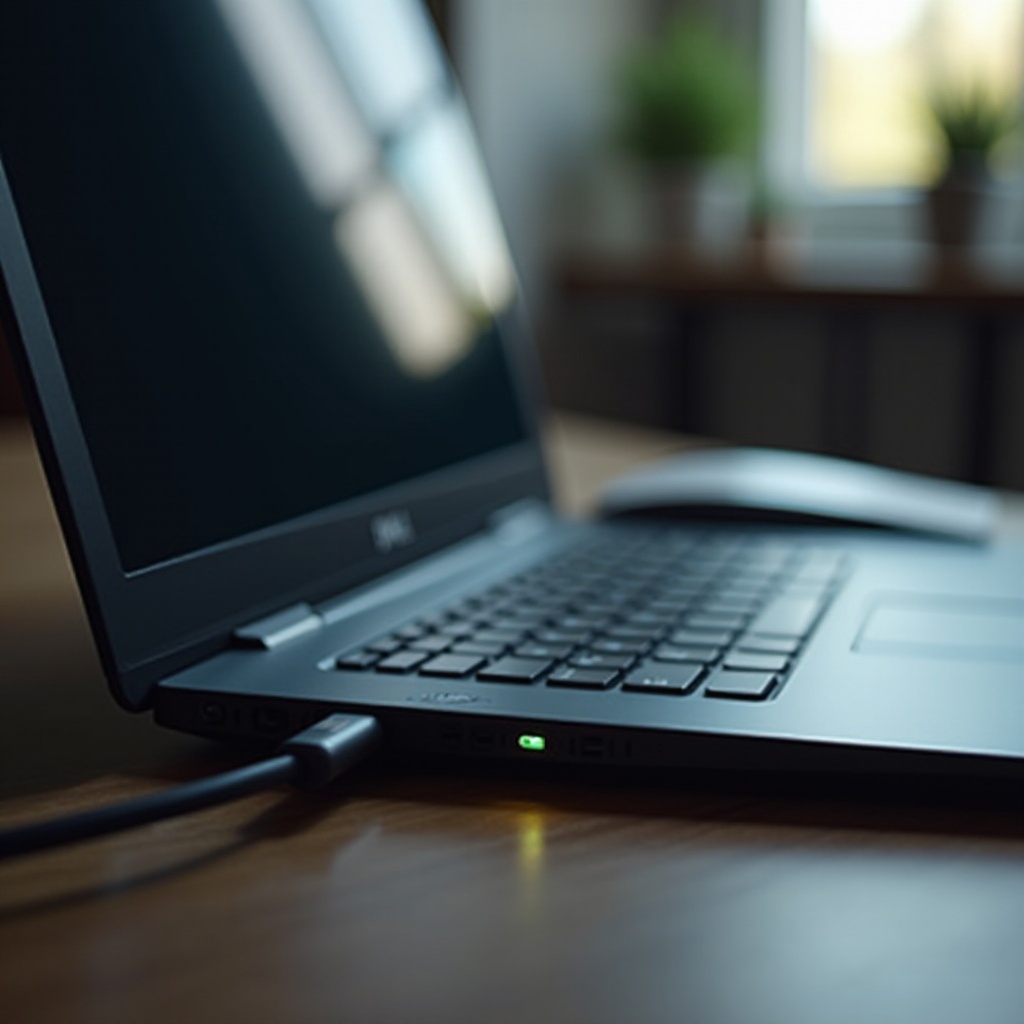
Verify Power Source: Make sure the power outlet is functional by testing it with another device. Sometimes, an outlet reset or even a circuit breaker flip is the simple fix needed.
-
Confirm Charger Cable and Adapter Functionality: Inspect your charger and cable for visible damage such as frayed wires or burn marks. Testing your laptop with another compatible charger can quickly rule out adapter issues.
Should these steps prove ineffective, it’s time to investigate battery and adapter issues more thoroughly.
Assessing Battery and Adapter Issues
Even with an active power supply, your laptop’s battery or adapter could be at fault.
-
Remove and Reinstall Battery: For models with a removable battery, ensure the laptop is turned off and unplugged, then remove the battery. After checking for dirt or debris, reinsert it and test again with the adapter.
-
Test Using a Different Adapter: Borrow or use a verified compatible adapter and see if your laptop responds. Testing an alternative power adapter can often confirm suspicions about the original charger.
Once the battery and adapter are assessed, you should next consider hardware inspections which delve into the internal components.
Hardware Inspections
Internal hardware malfunction can also lead to power issues. Careful inspection is necessary.
-
Check the Power Button: Examine whether the power button is stuck or damaged. A few firm, deliberate presses can sometimes jostle things back into alignment.
-
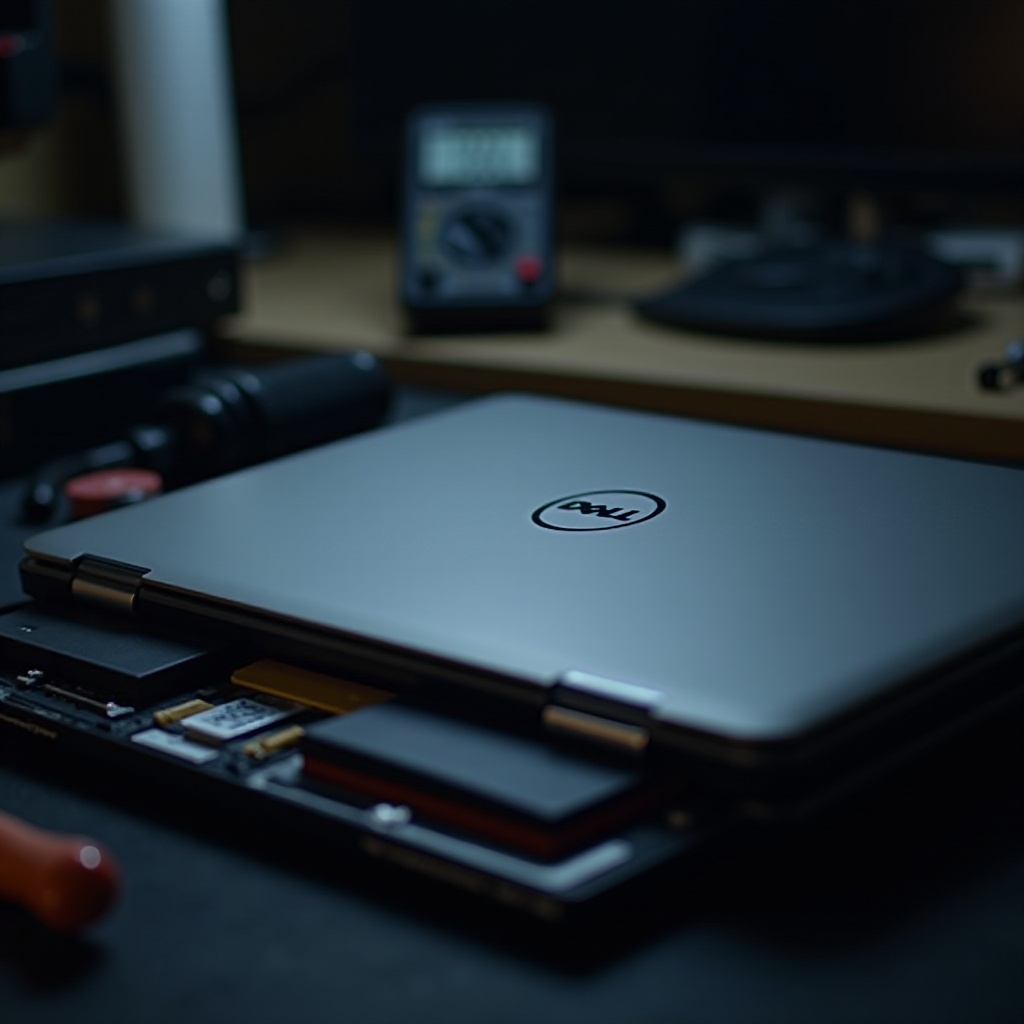
Inspect RAM and Other Components: Open up your laptop’s back panel and ensure that the RAM and other components are securely in place. Reseating these components can rectify connection issues that cause power failures.
With hardware checks completed, attention now turns to software-related troubleshooting.
Software Troubleshooting Solutions
In some cases, software glitches might prevent the laptop from powering on correctly.
-
Reset BIOS to Defaults: Enter the BIOS setup during startup (typically by pressing F2 or Delete) and select ‘Reset to default settings.’ Incorrect BIOS configurations can lead to booting hurdles.
-
Boot in Safe Mode: Safe Mode allows you to boot your laptop using minimal drivers. This can be accessed by interrupting the startup process three consecutive times, triggering automatic repair. If successful, it’s a sign that a third-party application might be involved.
After exhausting software options, advanced troubleshooting provides deeper insights.
Advanced Troubleshooting Techniques
Should all else fail, advanced tactics can uncover hidden problems.
-
Utilize Dell SupportAssist Diagnostics: Dell’s built-in SupportAssist tool can comprehensively scan for hardware failures and system errors. Follow the onsite prompts to run diagnostics.
-
Minimal Boot Configuration for Testing: Disconnect all peripherals and attempt to boot the laptop. This minimal setup can expose peripheral disruptions or conflicts.
After following these procedures, you should be able to diagnose whether the remedy is at hand or if professional intervention is warranted.
Conclusion
At this point, you’ve systematically explored several potential causes of your Dell laptop’s failure to power on. Whether a simple adjustment or more complex repair is needed, this guide empowers you with the knowledge to make informed decisions. Remember, regular maintenance, and system updates are key in avoiding similar pitfalls in the future. Always back up your data and perform routine checks to ensure your device remains in optimal health.
Frequently Asked Questions
Why won’t my Dell laptop battery charge when plugged in?
This issue could stem from a defective battery, issues with the charger cable, or software-related problems like outdated drivers.
How do I know if my Dell laptop charger is faulty?
Test the charger with another compatible device or try a different charger with your laptop. Visible damage to the charger can also signify faults.
Can a software update cause my Dell laptop not to turn on?
Yes, a failed or incomplete update can lead to startup issues. Booting in Safe Mode or using recovery options may help resolve this.