

 By
By Introduction
Insignia speakers deliver exceptional sound for various audio needs, but encountering technical issues can be bothersome. This guide provides straightforward solutions to help you diagnose and fix common speaker problems, ensuring you resume enjoying your favorite tunes and media without frustrating interruptions.

Diagnosing Common Issues
It’s crucial to start with the basics when addressing speaker issues. Let’s first examine the simplest possibilities.
-
Checking Physical Connections: Begin by ensuring that all cables are firmly connected. Any loose cables could be the cause of sound disruptions or complete audio loss.
-
Inspecting Power Supply: Confirm that the power outlet is active, with your speakers plugged in and switched on.
-
Testing with Different Devices: Determine if the issue stems from the speakers by connecting them to another device. This can help differentiate between speaker faults and device-specific issues.
After verifying these initial aspects, if the speakers are still nonfunctional, the focus should shift to software settings and updates.
Software and Audio Settings Adjustments
Adjusting audio settings on the connected device and ensuring up-to-date software can often resolve sound issues linked to Insignia speakers.
-
Adjusting Audio Settings on Your Device: Confirm that the device’s audio output is directed to Insignia speakers. Make sure the volume is set to an audible level and the speakers are not muted.
-
Ensuring Software and Drivers Are Up-to-Date: Outdated software could hinder compatibility. Check for and apply updates to the device’s operating system and audio drivers to mitigate such issues.
-
Resetting Your Device’s Audio Output: If audio settings seem correct but issues persist, resetting the audio output on the device can address configuration problems.
After adjusting software settings, we will explore networking concerns that might impact speaker performance.

Network and Connectivity Solutions
For wireless connections, network stability is key to ensuring seamless audio.
-
Resolving Wi-Fi and Bluetooth Issues: Verify that Bluetooth is enabled and the device is paired with the speakers correctly. For Wi-Fi setups, confirm that the network connection is reliable.
-
Handling Network Interference: Electronics and physical barriers can disrupt connectivity. Ensure that potential interference sources are distanced from both the speakers and the router.
-
Ensuring Proper Device Pairing: Double-check that your speakers are paired with the correct device. This may involve disconnecting and pairing afresh to establish a solid connection.
Should network fixes not resolve the problem, consider more advanced diagnostic measures.
Advanced Troubleshooting Techniques
More complex issues might require in-depth troubleshooting methods.
-
Inspecting Internal Hardware Issues: Internal damages or loose components can impede operations. If comfortable, carefully inspect the speaker’s internals; otherwise, consult professionals.
-
Using Diagnostic Apps and Tools: Leverage diagnostic tools and apps to identify audio issues pertinent to both the device and speakers.
-
Firmware Updates for Insignia Speakers: Check and apply any available firmware updates as manufacturers offer these to enhance and better device compatibility.
With advanced techniques deployed, maintaining your speakers becomes integral in preventing recurring issues.
Preventive Measures and Maintenance
Proactive maintenance can extend the lifespan of your Insignia speakers and curb frequent troubles.
-
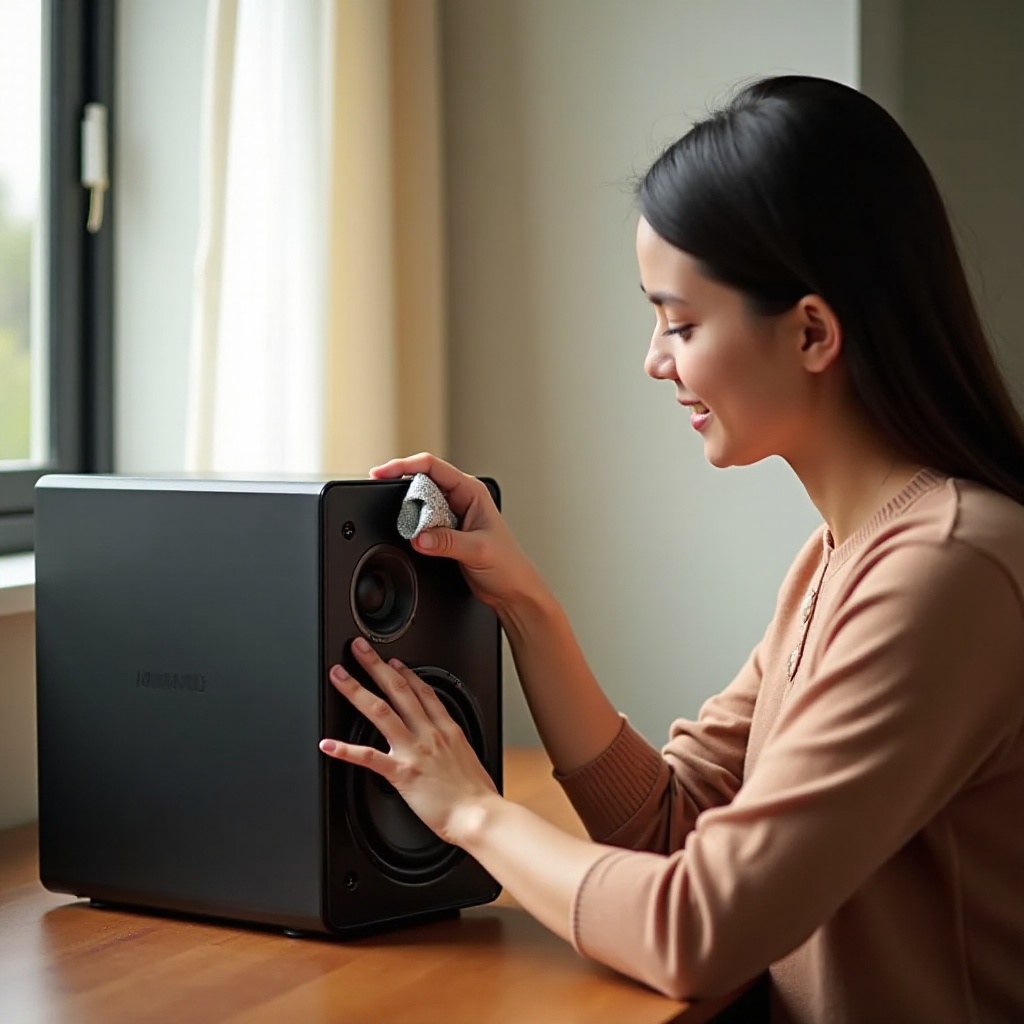
Regular Maintenance Tips for Insignia Speakers: Keep your speakers clean and free from dust. Ensure ventilation openings aren’t blocked to avoid overheating.
-
Best Practices for Long-Term Use: Protect your speakers from extreme temperatures and moisture, which can damage internal components.
-
Avoiding Common Mistakes: Use suitable power sources and avoid forcing cables. These precautions prevent damages due to misuse.
Should persistent issues surface despite preventive efforts, professional assistance might be required.
When to Seek Professional Help
Some problems might be too severe for home fixes.
-
Recognizing Irreparable Damage: Smells of burning, persistent distortions despite troubleshooting, or non-functioning ports indicate critical damage.
-
Warranty and Customer Support Options: Reach out to Insignia’s support for expert assistance. If under warranty, utilize services to repair or replace faulty components.
Conclusion
This detailed guide has examined ways to diagnose and resolve issues with Insignia speakers. From simple physical checks to complex troubleshooting, you now have an arsenal of tools to tackle audio challenges effectively. Maintaining regular upkeep ensures your speakers deliver optimal performance, providing a consistently exceptional audio experience.
Frequently Asked Questions
What should I do if my Insignia speakers won’t turn on?
First, ensure they are connected to a working power outlet with switches turned on. If they don’t power on, inspect for internal hardware issues or contact support.
How often should I update the firmware on my Insignia speakers?
Check for and apply firmware updates whenever they are available. Regular updates ensure the speakers function optimally and remain compatible with devices.
Are there any common compatibility issues with Insignia speakers?
Compatibility issues can arise from outdated drivers or mismatched settings. Keep drivers updated and device settings aligned with speaker requirements to avoid issues.