

 By
By Introduction
You are facing the unwelcome ‘No Bootable Device’ error on your laptop. This is not just an inconvenience but a hurdle halting your workflow. This error indicates that your laptop cannot find the necessary information to start its operating system. With this guide, we aim to help you address this issue methodically, leaving the stress behind and restoring your laptop’s functionality.
Understanding the root of such errors is essential for efficient troubleshooting and prevention. By the end of this guide, you’ll have harnessed the skills needed to tackle current and future booting issues effectively without professional intervention. Let’s delve into understanding this perplexing error.
Understanding the ‘No Bootable Device’ Error
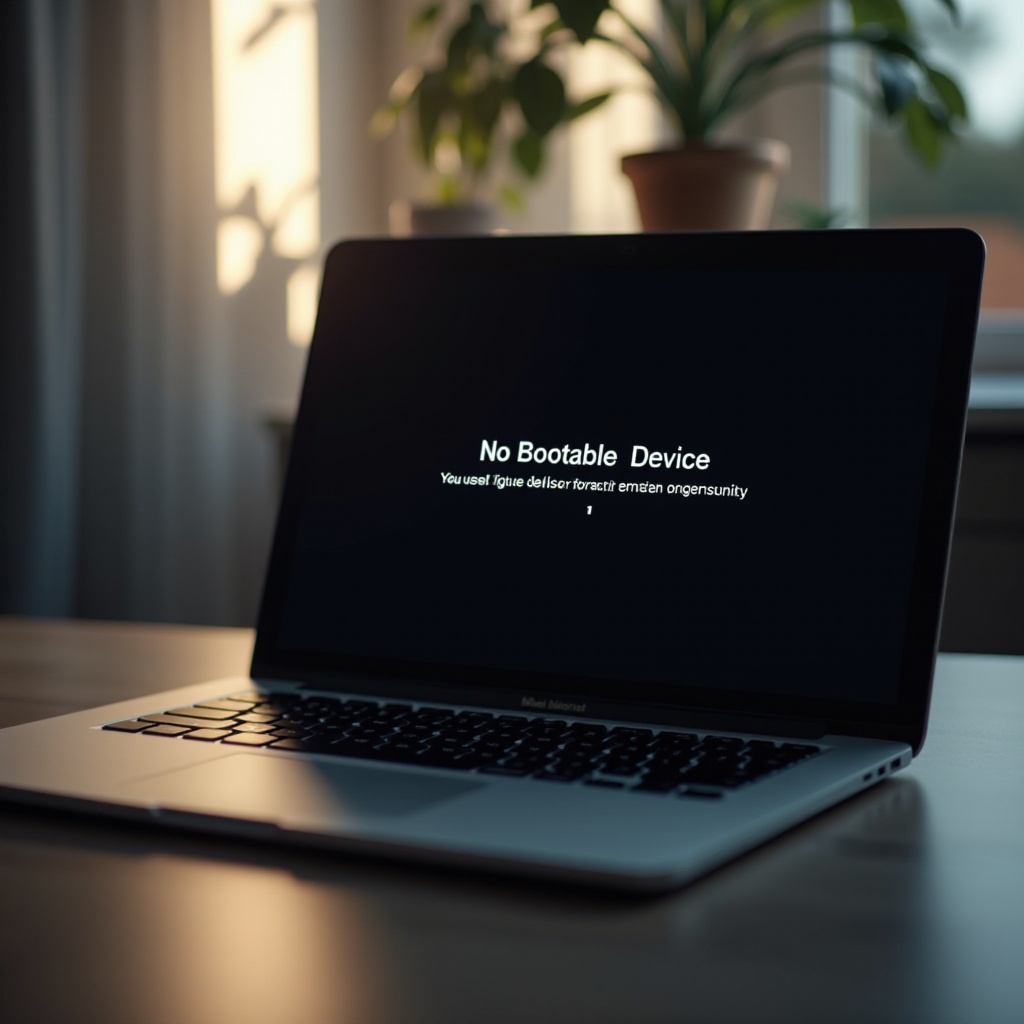
Seeing a ‘No Bootable Device’ message on your screen means your laptop isn’t detecting the hard drive or its boot info. This error crops up due to several predictable causes.
What Does the Error Mean?
Your hard drive stores the operating system necessary for your laptop to function. The error shows up when your device can’t locate this critical component. It’s an alarming yet common problem that may stem from simple configuration errors or more severe hardware malfunctions.
Common Causes of the Error
Several issues could be triggering this:
– Wrong boot order settings in the BIOS.
– Loose or faulty hard drive connections.
– Corrupted boot sector or system files.
– Recent software updates or changes.
With these possibilities in mind, we can begin addressing what is potentially causing the error.
Initial Diagnostic Steps
Before delving into intensive fixes, start with these quick diagnostic steps that frequently resolve the issue swiftly.
Check BIOS Settings
1. Restart your laptop while pressing F2, F10, or DEL to enter the BIOS setup.
2. Navigate to the ‘Boot’ tab to ensure the hard drive is selected as the primary boot device.
3. Save your settings and exit the BIOS. Restart your machine to apply changes.
Verify Physical Connections
Hardware factors might also lead to boot issues:
– Power down your laptop and disconnect any external peripherals.
– Remove the battery, if applicable, to access the hardware safely.
– Inspect if your hard drive cables are secure and properly connected.
If these steps don’t resolve the problem, it’s time to explore software-based solutions to address the root of the boot issues.
Software Solutions
When initial diagnostics don’t fix the problem, software solutions can effectively tackle boot-related issues.
Adjusting Boot Order in BIOS
Re-enter the BIOS to re-evaluate boot priorities:
– Ensure the hard drive is prioritized without redundant external devices in the sequence.
– After confirming, save changes and perform another restart.
Running Startup Repair Tool
Windows provides tools to fix startup issues:
– If Recovery Mode appears, head to ‘Troubleshoot’ > ‘Advanced Options’ > ‘Startup Repair’.
– Follow prompts, allowing the system to repair boot issues automatically.
Fixing Boot Records with Command Prompt
Use Command Prompt when boot records are corrupted:
1. Access ‘Advanced Options’ in Recovery Mode, select ‘Command Prompt’.
2. Execute: bootrec /fixmbr, bootrec /fixboot, bootrec /rebuildbcd sequentially.
3. Close Command Prompt and reboot your laptop.
By addressing software issues, many common boot problems can be mitigated. If these do not solve the issue, turn your attention to possible hardware failures.
Advanced Troubleshooting
For stubborn problems, focus on more rigorous troubleshooting, which might involve hardware inspections.
Evaluating Hard Drive Health
Using diagnostic tests can identify hard drive failures:
– Use BIOS-integrated tools to scan for failures.
– Third-party diagnostics can offer deeper insights into drive health.
Using Recovery Drives for Reinstallation
If your hard drive passes inspections but issues persist, reinstalling the OS can help:
– Create a bootable USB with the necessary operating system files.
– Conduct a full OS reinstall, ensuring data is backed up when possible.
Replacing the Hard Drive
If diagnostics reveal a problematic drive, replacement might be required:
– Purchase a compatible replacement drive.
– Install and configure it according to manufacturer instructions.
Once your drive is healthy and functioning correctly, consider long-term preventive strategies.
Preventive Measures
With issues fixed, adopt practices to prevent future occurrences.
Regular Backup Routines
– Implement routine data backups, both cloud-based and physical.
– Regular backups safeguard against data loss during unforeseen events.
System and BIOS Updates
– Regularly update the operating system and BIOS with the latest patches and updates.
– Staying up-to-date ensures better security and compatibility.
Proactive maintenance reduces the likelihood of boot issues and ensures your laptop performs reliably over time.
Conclusion
Addressing the ‘No Bootable Device’ error isn’t just about resolving current issues; it’s about understanding and preventing future ones. Through careful diagnostics and solutions ranging from basic checks to complete hardware overhauls, you can restore your laptop to peak performance and minimize future risks. Implement the preventive strategies highlighted, and enhance your digital experience by ensuring stability and reliability in your laptop’s operation.
Frequently Asked Questions
What should I do if my laptop says no bootable device?
First, check BIOS settings for correct boot order and verify hard drive connections. Run startup repair tools and consult advanced troubleshooting if needed.
Can a failed hard drive cause a no bootable device error?
Yes, a failed or disconnected hard drive is a common cause of this error. Evaluating drive health can help determine if replacement is necessary.
How can I prevent boot errors on my laptop in the future?
Regular system updates, backups, and BIOS updates prevent boot errors. Keep hardware connections secure and maintain a healthy hard drive.