

 By
By Introduction
Finding the perfect printer compatible with your Mac can be a daunting task, given the plethora of options available. Whether you are a graphic designer needing high-quality prints, a student requiring reliable document printing, or a professional seeking an all-in-one solution, this guide is here to help. We have done the research to bring you the best printers for Macs in 2024, outlining crucial features and providing in-depth reviews to make your purchasing decision easier.
Understanding Printer Compatibility with macOS
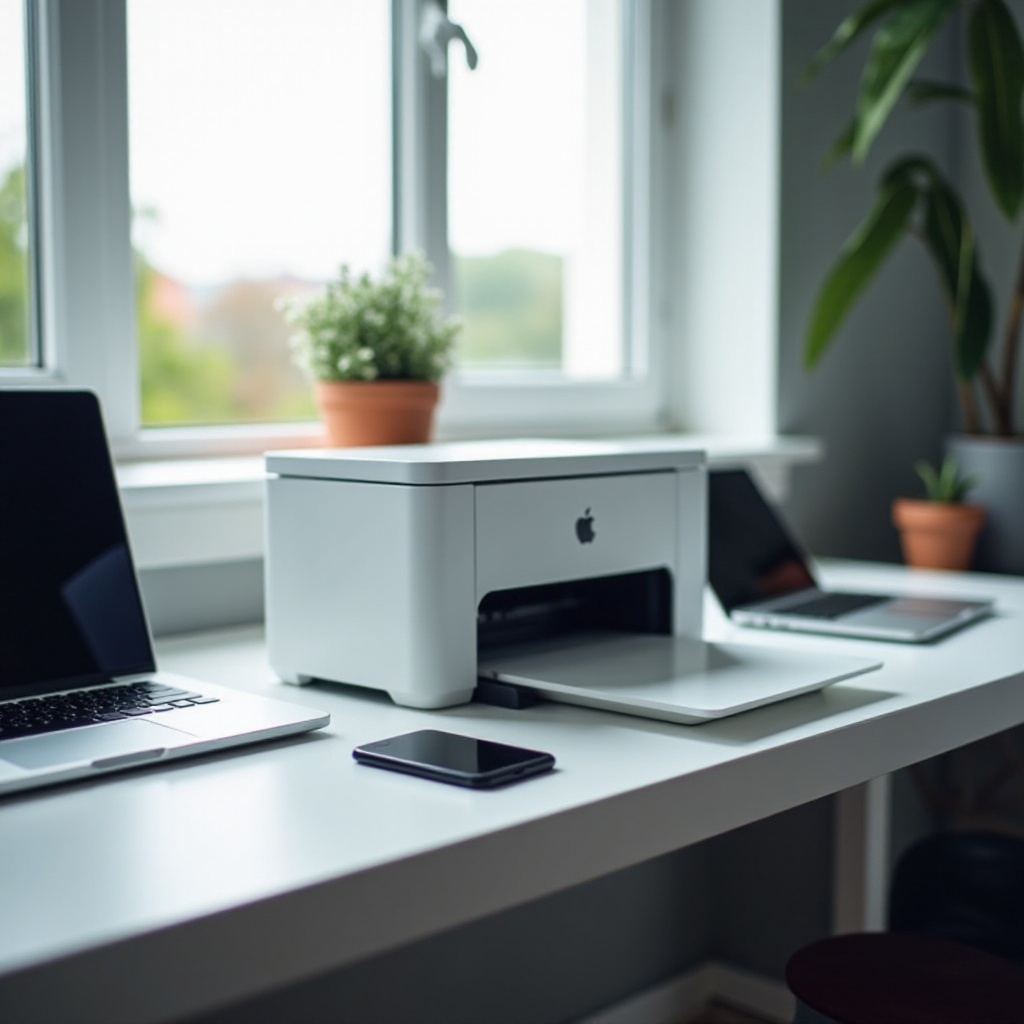
Before diving into specific printer models, it is crucial to understand what makes a printer compatible with macOS. Not all printers will work seamlessly with Mac devices, so knowing what to look for can save you headaches down the road. macOS compatibility means the printer has the necessary drivers and software to communicate effectively with your Mac, ensuring smooth operation. Also, the ease of use with macOS updates is a factor to consider, as frequent updates might affect printer functionality.
Ensuring the chosen printer offers full functionality with macOS enhances productivity and keeps technical issues at bay. A printer compatible with macOS usually supports AirPrint, enabling wireless printing from any Apple device without additional software. This makes daily tasks much smoother and hassle-free.
Key Features to Consider for Mac-Compatible Printers
When looking for a printer that works well with your Mac, several key features need to be considered.
Connectivity Options
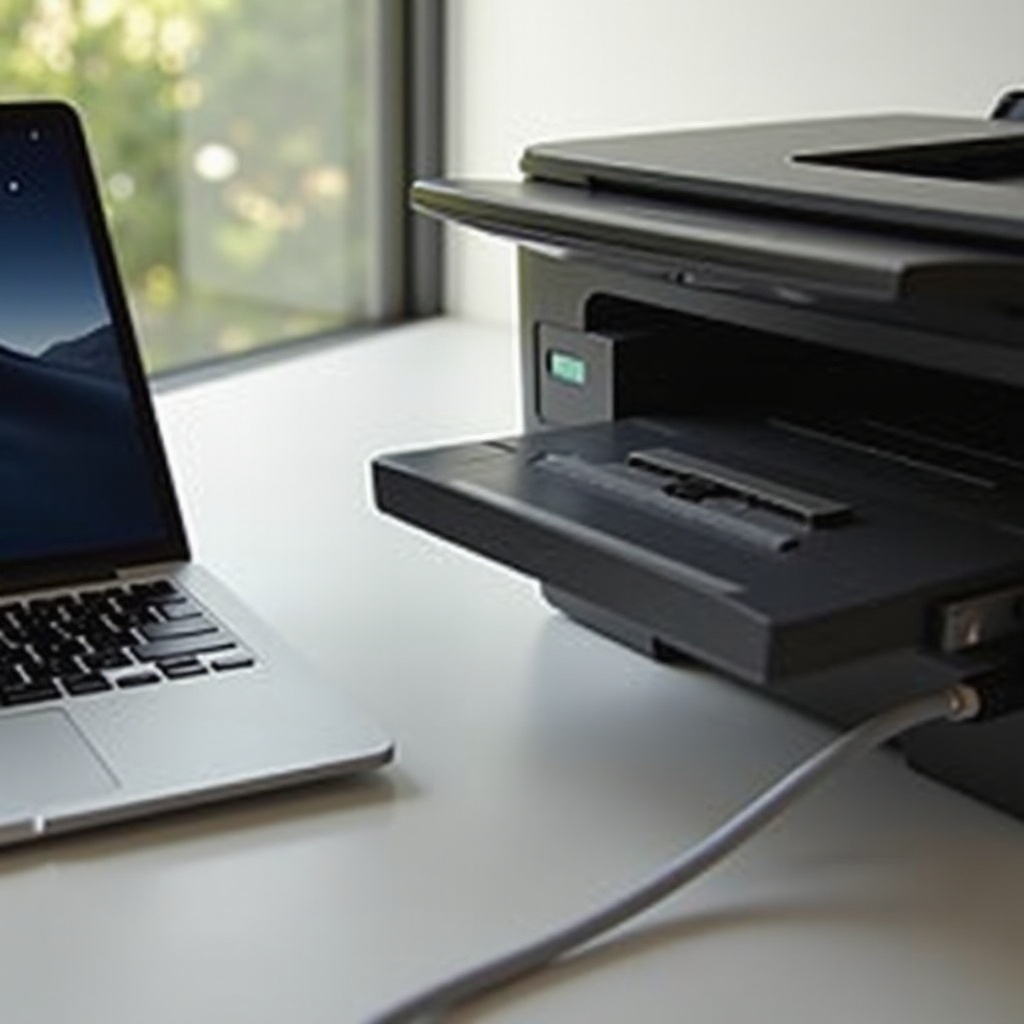
Printers today come with multiple connectivity options such as Wi-Fi, Bluetooth, USB, and Ethernet. For Mac users, AirPrint support is a big plus, allowing seamless printing from any Apple device. Additionally, cloud printing features, which enable printing from anywhere via an internet connection, can be incredibly useful.
Print Quality and Speed
Print quality and speed are vital, depending on your needs. If you primarily print text documents, a printer with a high page-per-minute (PPM) rate might be beneficial. Conversely, if you need high-resolution image printing, focus more on the printer’s DPI (dots per inch) and color precision.
Ease of Setup
An easy setup process can save a lot of time and frustration. Choose printers with simple installation procedures and straightforward user interfaces. Many modern printers offer setup wizards or apps to streamline the process, ensuring you can get started quickly without hassle.
Top Printer Categories for Mac Users
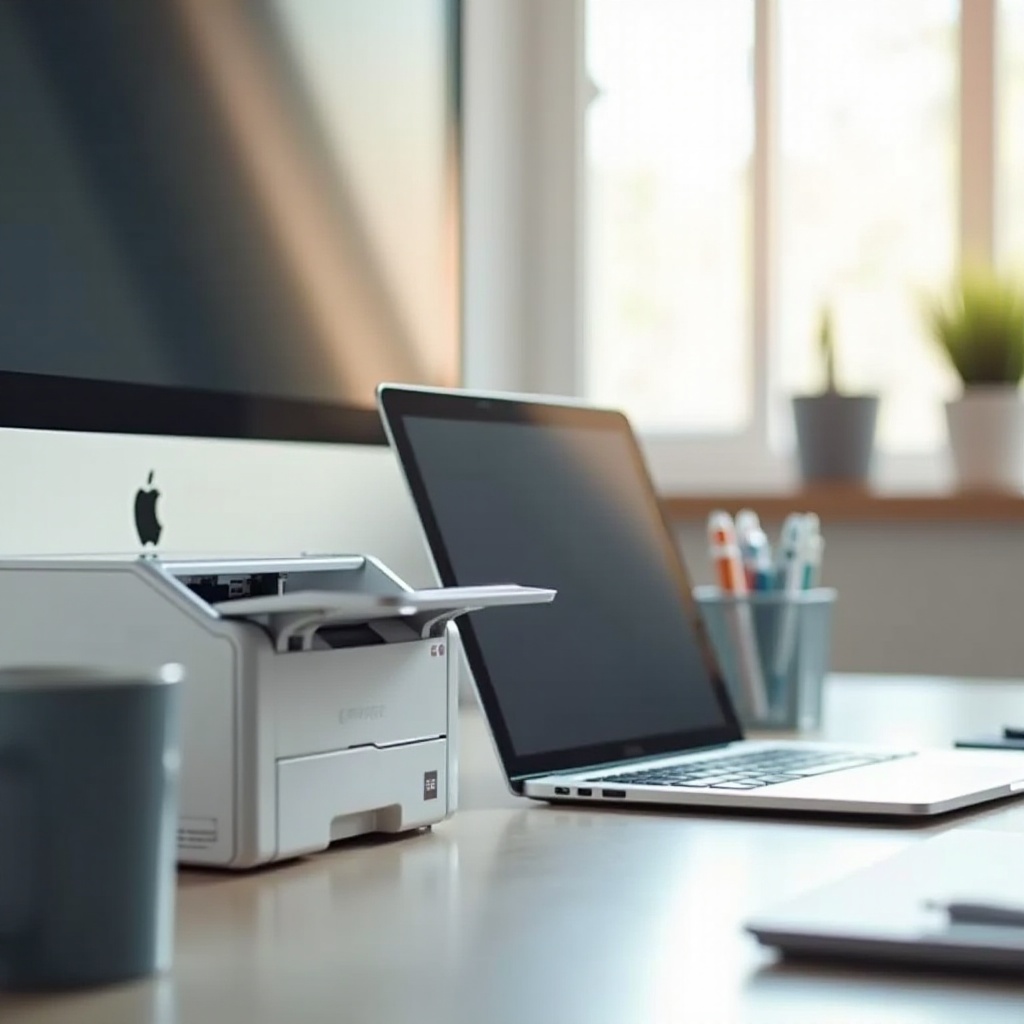
To help narrow down your choices, we have categorized the best printers for Mac users in 2024 based on different needs.
Best All-in-One Printers
All-in-one printers offer printing, scanning, copying, and sometimes faxing functions. These are ideal for home offices or small businesses needing multiple functions in one device.
Best Budget-Friendly Printers
Affordable printers that still deliver quality prints are highlighted in this category. These are great for students or casual users who do not want to spend too much but need reliable performance.
Best High-End Printers
High-end printers offer superior quality and advanced features. These are perfect for professionals like graphic designers and photographers who need top-notch print quality.
Best Portable Printers
For those always on the move, portable printers offer a compact and lightweight solution. These are usually battery-operated and can easily fit into a bag for printing on the go.
Detailed Reviews of Top Printers
Here are detailed reviews of some of the top printers that we recommend for Mac users.
Printer 1: In-depth Review
Model: HP OfficeJet Pro 9015
The HP OfficeJet Pro 9015 is an all-in-one powerhouse, boasting features like automatic duplex printing, a 35-page automatic document feeder, and a sleek touchscreen interface. With AirPrint compatibility, it integrates seamlessly with macOS. It offers exceptional print quality, especially for color documents and photographs, and its impressive speed ensures high productivity.
Printer 2: In-depth Review
Model: Canon PIXMA TR150
Designed for mobility, the Canon PIXMA TR150 is the best portable option. This compact printer supports Wi-Fi and USB connections and is AirPrint compatible. Despite its small size, it delivers sharp prints with vivid colors. Its battery option is perfect for users who need to print while traveling, making it ideal for business professionals on the go.
Printer 3: In-depth Review
Model: Brother HL-L2350DW
For budget-conscious users, the Brother HL-L2350DW offers reliable monochrome printing at an attractive price point. It supports Wi-Fi, which can easily be set up with macOS. Its main highlight is its speed, capable of printing up to 32 pages per minute. The cost of operation is also relatively low, making it suitable for students or small businesses.
Setting Up and Customizing Your Printer
Once you have chosen your printer, setting it up correctly is the vital next step.
Basic Setup Instructions
- Unbox the printer and remove all protective materials.
- Connect the printer to a power source and turn it on.
- Follow the manufacturer’s guidelines to install ink or toner cartridges.
- Connect the printer to your Wi-Fi network or via USB, depending on your preference.
- Install the necessary drivers and software on your Mac. This can usually be done through the printer’s installation disc or the manufacturer’s website.
Customization Tips
- Modify print settings such as print quality, paper size, and duplex printing according to your preferences.
- Use the printer’s software or app to create shortcuts for frequently used operations.
- Regularly update the printer’s firmware to ensure it works seamlessly with macOS updates.
Troubleshooting Common Issues
- If your printer is not recognized by your Mac, ensure it is on the same Wi-Fi network.
- Restart your Mac and printer to resolve connectivity issues.
- Refer to the printer’s manual or support website for specific troubleshooting steps related to error messages.
Conclusion
Selecting the best printer for your Mac involves understanding compatibility, identifying the key features you need, and considering top models in various categories. Whether you are looking for an all-in-one printer, a budget-friendly option, a high-end machine, or a portable solution, there is a Mac-compatible printer out there to meet your needs.
Frequently Asked Questions
How do I know if a printer is compatible with my Mac?
Check the manufacturer’s specifications for macOS compatibility and AirPrint support. Most brands list compatible operating systems on their product pages.
What are the best connectivity options for Mac-compatible printers?
Wi-Fi and AirPrint are highly recommended for their ease of use with Mac devices. USB and Ethernet connections are also reliable options.
Is AirPrint necessary for Mac users?
While it’s not absolutely necessary, AirPrint simplifies the printing process, allowing you to print directly from Apple devices without installing additional drivers or software.