

 By
By Introduction
You open your device, navigate to the app store, and select an app to download, but nothing happens. Frustration sets in as you try again and again with the same outcome. ‘Why won’t anything download?’ you wonder. Experiencing issues with app store downloads is common and can be caused by several factors. Here, we’ll explore the most likely causes and provide step-by-step solutions to get your downloads back on track.

Common Causes of Download Issues
Understanding why your app store won’t let you download anything starts with identifying common causes. Here are some typical reasons:
- Internet Connection: A weak or unstable internet connection can prevent downloads.
- Insufficient Storage: Your device might not have enough space for new apps.
- Software Glitches: Temporary software issues can cause download problems.
- Outdated Software: Running an outdated version of your operating system or app store can cause compatibility issues.
- Account Issues: Problems with your app store account can also block downloads.
Knowing these common causes helps narrow down the troubleshooting process and resolve the issue more quickly.
Quick Fixes to Try First
Before diving into more advanced solutions, start with these quick fixes. They often resolve the issue without much effort:
- Check Your Internet Connection:
- Ensure you’re connected to a stable Wi-Fi or cellular network.
-
Try turning off and on airplane mode to reset the connection.
-
Restart Your Device:
- Rebooting your device can clear temporary glitches.
-
Simply power off and then power back on.
-
Clear App Store Cache (for Android users):
- Go to Settings > Apps > Google Play Store > Storage.
-
Tap ‘Clear Cache’.
-
Check Storage Space:
- Go to Settings > Storage.
-
If your storage is full, delete unnecessary files or apps.
-
Update Your Software:
- Check for any updates to your operating system or app store.
- Install available updates to ensure compatibility.
These steps can quickly resolve many common download issues. If the problem persists, it may be time to dive deeper into your app store and device settings.
Advanced Troubleshooting: App Store and Settings
If the quick fixes didn’t work, you might need to explore advanced troubleshooting options within your app store and device settings:
- Sign Out and Sign Back In:
- Go to your app store account settings.
-
Sign out and then sign back in to refresh your account connection.
-
Check Date and Time Settings:
- Go to Settings > Date and Time.
-
Ensure your device is set to the correct date and time.
-
Reset Network Settings:
- Go to Settings > General Management > Reset > Reset Network Settings.
-
This can resolve connection-specific issues.
-
Reinstall the App Store (for Android users):
- Go to Settings > Apps > Google Play Store > Uninstall Updates.
-
This reverts the app store to its factory version, potentially fixing glitches.
-
Permissions Check:
- Ensure the app store has the necessary permissions.
- Go to Settings > Apps > [App Store] > Permissions.
By carefully following these steps, you can address deeper issues within your app store settings and improve the likelihood of successful downloads.
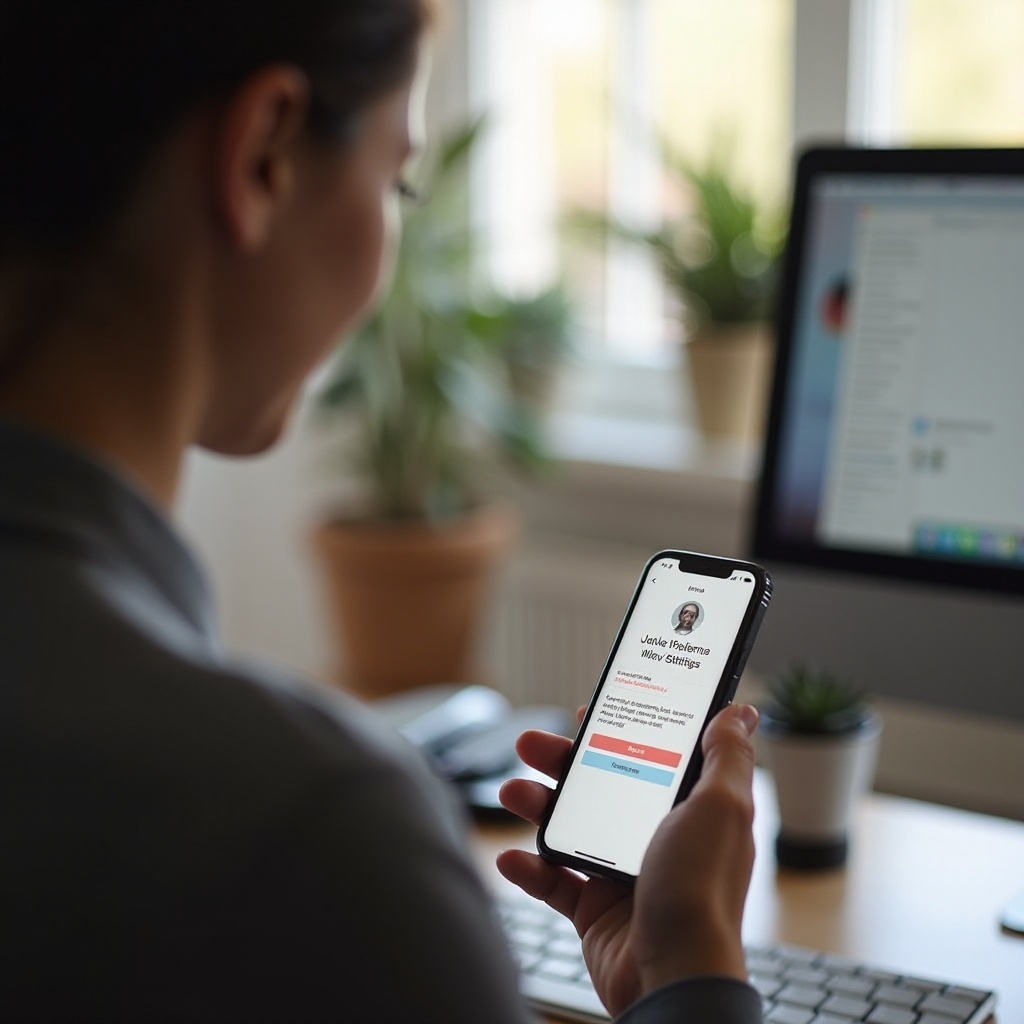
Dealing with Account and Payment Problems
Sometimes, the issue lies with your app store account or payment information. Here’s how to handle those:
- Verify Payment Information:
- Ensure your payment method on file is up-to-date.
-
Go to account settings and update any expired or incorrect information.
-
Resolve Account Issues:
- Look for any notifications about your account.
-
Address any reported issues, such as verification problems.
-
Review Purchase History:
- Check for any uncompleted transactions.
- Resolve any pending purchases that might be blocking new downloads.
By addressing these account and payment-related problems, you can ensure that your account is not causing download interruptions.
When to Seek Professional Help
If you’ve tried all the previous steps and still can’t download anything from the app store, it might be time to seek professional help:
- Contact Support:
- Reach out to the app store’s customer service.
-
Provide them with detailed information about the issue.
-
Visit an Authorized Service Center:
- A technician can perform a more thorough diagnostic.
- They can address hardware-related problems or perform advanced troubleshooting.
Professional assistance ensures that issues beyond your control can be effectively managed.

Conclusion
Struggling with app store downloads is common but largely fixable. By understanding the common causes and experimenting with quick fixes and advanced troubleshooting steps, most users can resolve these issues on their own. Always keep your device and app store updated, maintain a reliable internet connection, and ensure your account information is current. When in doubt, professional help is always available.
Frequently Asked Questions
Why is my app store not letting me download anything?
Your app store may not let you download anything due to issues like an unstable internet connection, insufficient storage, software glitches, outdated software, or account problems.
How do I fix the app store download error on my phone?
To fix the error, try checking your internet connection, restarting your device, clearing app store cache, freeing up storage space, and ensuring your software is up-to-date.
What should I do if my app store is still not working after trying all the fixes?
If your app store isn’t working after trying all fixes, contact the app store’s customer support or visit an authorized service center for further assistance.