

 By
By Introduction
The ‘WiFi: No Hardware Installed’ message on a MacBook can be a major disruption. This error suggests a failure in the MacBook’s ability to connect to WiFi networks, leaving users stuck without internet access. Identifying the underlying causes, whether they are software glitches or hardware problems, is crucial for finding an effective solution. In this comprehensive guide, we will explore various troubleshooting steps to help you regain WiFi functionality on your MacBook.

Understanding the ‘WiFi: No Hardware Installed’ Error
The message ‘WiFi: No Hardware Installed’ typically points to a problem with your MacBook’s hardware recognition, specifically the WiFi card. This could stem from software conflicts, outdated system settings, or physical component failures. Before diving into complex solutions, confirming that the problem persists across different networks can indicate whether it’s genuinely a MacBook issue or external factors influencing connectivity.
Initial Troubleshooting Steps
Let’s begin with simple fixes that may resolve the issue:
- Restart Your MacBook: A restart can reset temporary configurations and clear minor glitches affecting the system’s performance.
- Check for Software Updates: Up-to-date software is vital, as updates often include patches for known issues, including connectivity problems.
If these approaches do not solve the issue, it’s indicative of the need for a more thorough investigation into system settings or potential hardware malfunctions.
Advanced Software Troubleshooting
When the initial steps fail, more advanced measures are warranted:
- Reset the System Management Controller (SMC):
- Shut down your MacBook.
- For models with non-removable batteries, press and hold Shift, Control, Option, and the power button for 10 seconds.
-
Release the keys and then power on your MacBook.
-
Reset NVRAM/PRAM:
- Shut down your device completely.
- Upon restart, immediately hold down Option, Command, P, and R for 20 seconds.
-
Release the keys upon hearing the startup sound.
-
Boot into Safe Mode:
- Power off the MacBook.
- Turn it back on while immediately pressing the Shift key until you see the login screen.
These approaches often correct misconfigured settings that could lead to the non-recognition of hardware components.
Hardware Inspection and Repair Options
If software troubleshooting proves ineffective, hardware inspection becomes necessary:
-
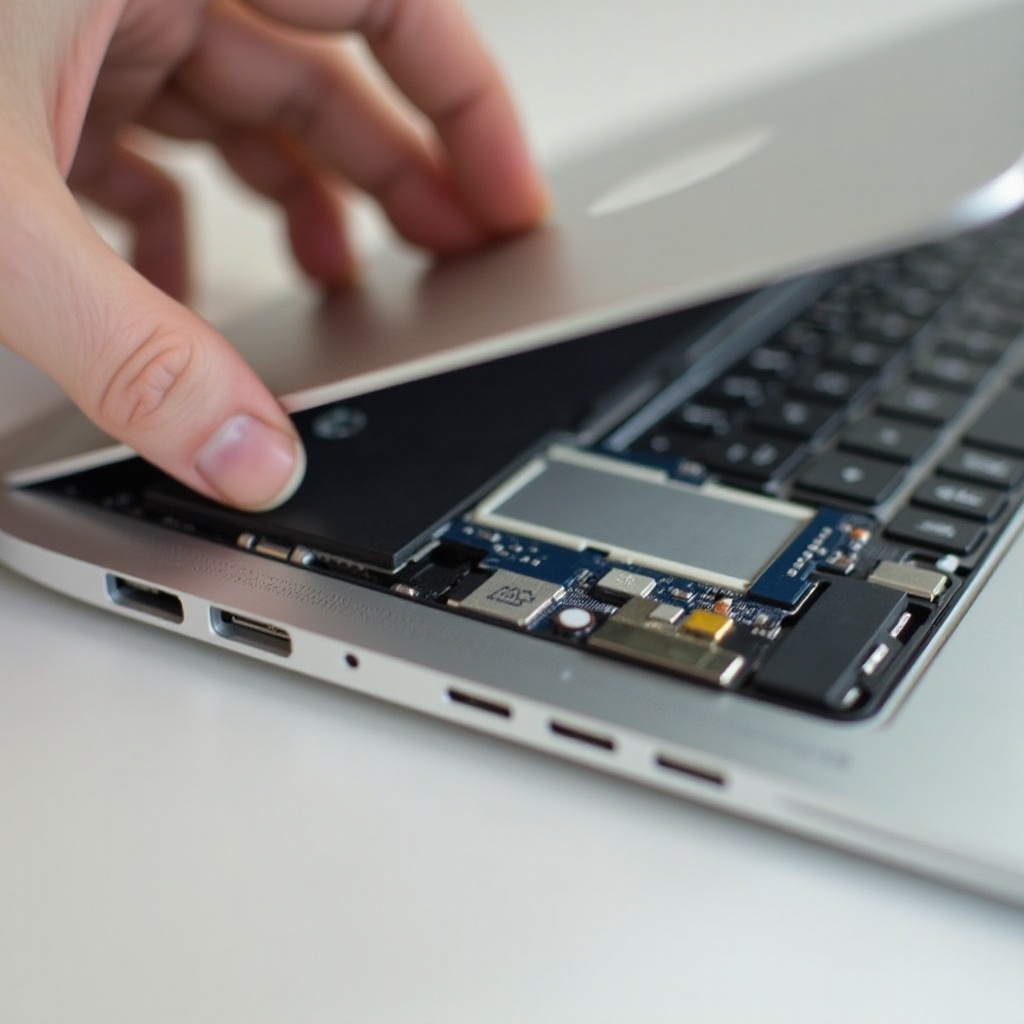
Verify Physical Connections: Ensure that internal cables and components related to WiFi are connected securely within the MacBook.
-
Run Apple Diagnostics: Utilize this tool to detect any hardware malfunctions that could be causing the connectivity issue.
- Shut down the MacBook.
- Turn it on and immediately press the D key until a diagnostics interface begins.
Persistent issues hint at deeper hardware troubles, potentially requiring professional services to address the problem effectively.
When to Seek Professional Help
Should none of the above steps rectify the situation, professional intervention may be necessary. Persistent hardware or software failures can mean internal components are faulty or damaged. Consider reaching out to Apple Support or visiting an authorized repair center, especially if your MacBook is still under warranty or AppleCare protection.
Conclusion
To sum up, sorting out the ‘WiFi: No Hardware Installed’ problem involves a series of steps beginning with simple software checks and evolving into detailed hardware inspections. By following this guide, you can address most issues affecting your MacBook’s connectivity. Regular updates and careful handling of your device can prevent future connectivity disruptions. For issues beyond DIY repair, don’t hesitate to seek expert assistance.
Frequently Asked Questions
Why does my MacBook say ‘No Hardware Installed’ for WiFi?
This message usually appears due to software issues or faulty hardware that prevents the WiFi card from being recognized.
Is it safe to reset the SMC and NVRAM on my MacBook?
Yes, it’s safe and often resolves many hardware and software issues without affecting user data.
What should I do if my MacBook’s WiFi issue persists after troubleshooting?
Consider consulting Apple support or visiting an authorized service provider for further diagnosis and potential repairs.